
Click approvals
The Click approvals page is the bot’s pause-step-debug button. When enabled, every sensitive action — taps, swipes, screen overrides — stops at this page and waits for an Approve / Skip / Reject decision before firing.
It’s the fastest way to author a new scenario: you write the DSL, flip approvals on, and watch each step pause with the screenshot the bot is acting against — including a highlight box around the region it intends to click.
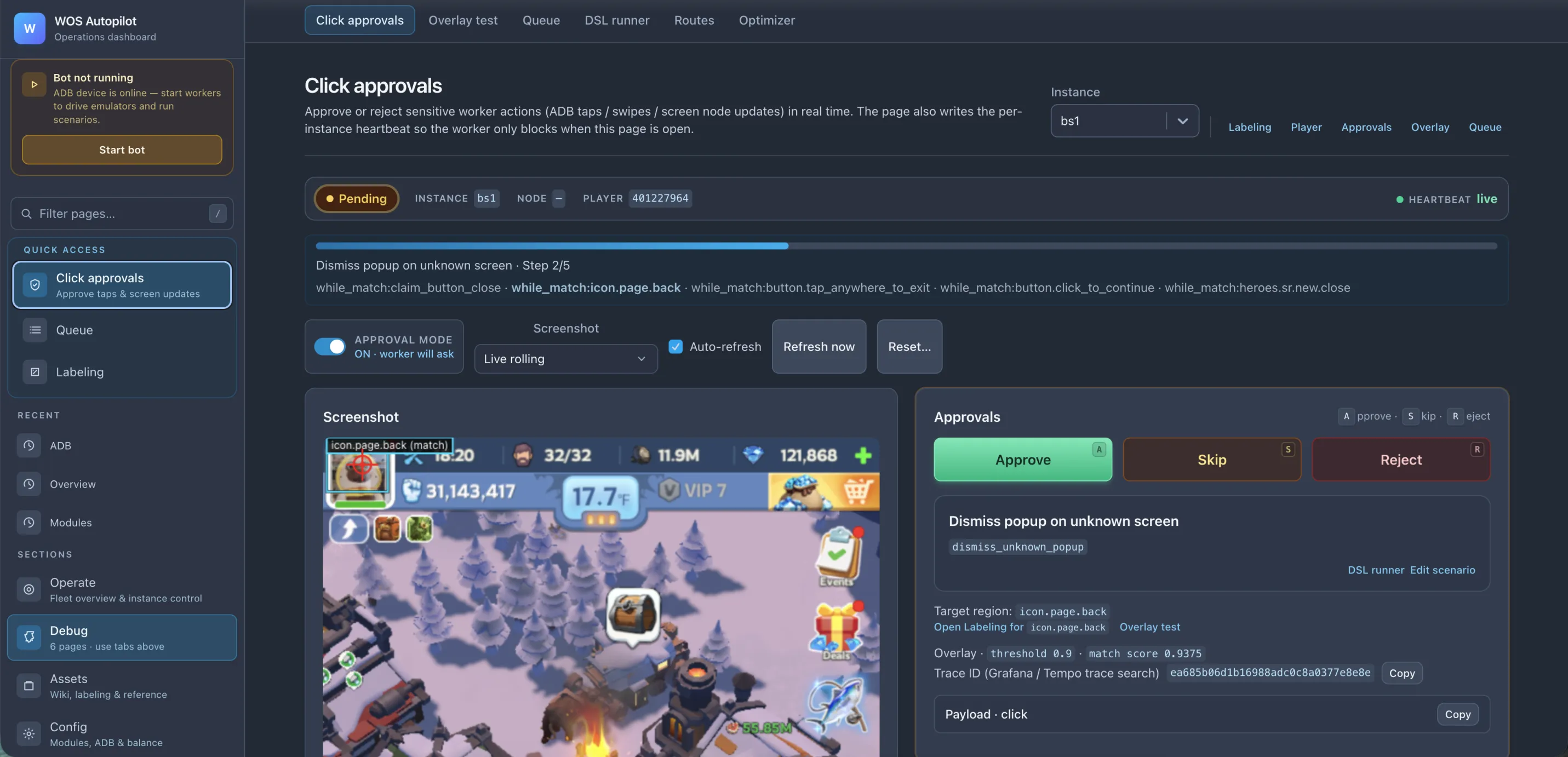
What you see when a step pauses
Section titled “What you see when a step pauses”- The exact screenshot the bot just captured, with the target region highlighted as a red bounding box. No more “I think it’s clicking the right thing” — the page shows literally where the tap will land.
- Scenario chain — the path of nested steps that led here (e.g.
while_match.button.page.back > while_match.button.tap_to_continue > …). Useful when the failure is “wrong sub-scenario fired,” not “right scenario, wrong tap.” - Step counter (
Step 2/2) and metadata: priority, instance, current node, active player. - Target region + payload (the actual
click/swipearguments) + trace ID to correlate with logs. - Approve / Skip / Reject — the three outcomes.
Screenshot source
Section titled “Screenshot source”The Screenshot dropdown picks how the canvas is fed:
| Source | Backend | Notes |
|---|---|---|
| Captured (request) | bot-side screencap | The exact frame the bot acted on at approval time. Static — best for verifying “what did it see when it decided to tap.” |
| Live rolling | rolling PNG on disk | Worker overwrites a PNG every tick (~1–2 Hz); the UI cache-busts on mtime. Works with any backend. |
| Live video (WebCodecs) | scrcpy over WebSocket | ~30 fps with ~50 ms latency — H.264 stream decoded in the browser via WebCodecs. Auto-enabled when the device’s input/screenshot backend is set to scrcpy and the browser supports WebCodecs (Chrome / Edge / Safari). |
The live-video path is the most ergonomic for authoring: you see touches land in near real time, so a mis-clicked region or a slow popup is obvious in motion rather than from frame-by-frame refreshes.
In Docker installs, rolling screenshots are shared through the wos_temporal volume mounted by both
bot and api. If the screenshot panel is blank after an upgrade, fetch the current
docker-compose.prod.yml and recreate the bot + api services so that volume is mounted.
Approval modes
Section titled “Approval modes”| Mode | Behavior | Best for |
|---|---|---|
| Off | All taps fire automatically. | Production runs. |
| Hold rolling | Pauses on every sensitive tap, you decide per step. | Authoring a new scenario, debugging a misfire. |
| Auto-refresh | Each new pending tap auto-loads the screenshot without you clicking refresh. | Active debugging session. |
| Reset… | Drops the current approval queue (skip everything pending). | Got stuck in a chain, want to start over. |
Cross-references
Section titled “Cross-references”- DSL runner — open the running scenario in the DSL runner with the same state, so you can step through the YAML side-by-side with the live execution.
- Copy payload — get the raw click/swipe payload for posting in a bug report.
- Labeling — jump to the region’s labeling page if the bounding box looks wrong (often the fix is in the region definition, not the scenario).
Tips for scenario authoring
Section titled “Tips for scenario authoring”- Turn approvals on before your first run — saves the “I missed which step misfired” investigation by making each step explicit.
- Use Skip liberally —
Skiplets the scenario continue without firing the tap, so you can see what the next step would have evaluated against. Useful when the current screen is wrong but you want to verify the next match works. - Reject = scenario abort —
Rejectfails the whole scenario, marking it as a UI-rejected task in the queue. - Cross-check the highlight against the screenshot — if the red box isn’t where you expect, the issue is in
area.json(re-label the region), not in your DSL.