
Install on macOS
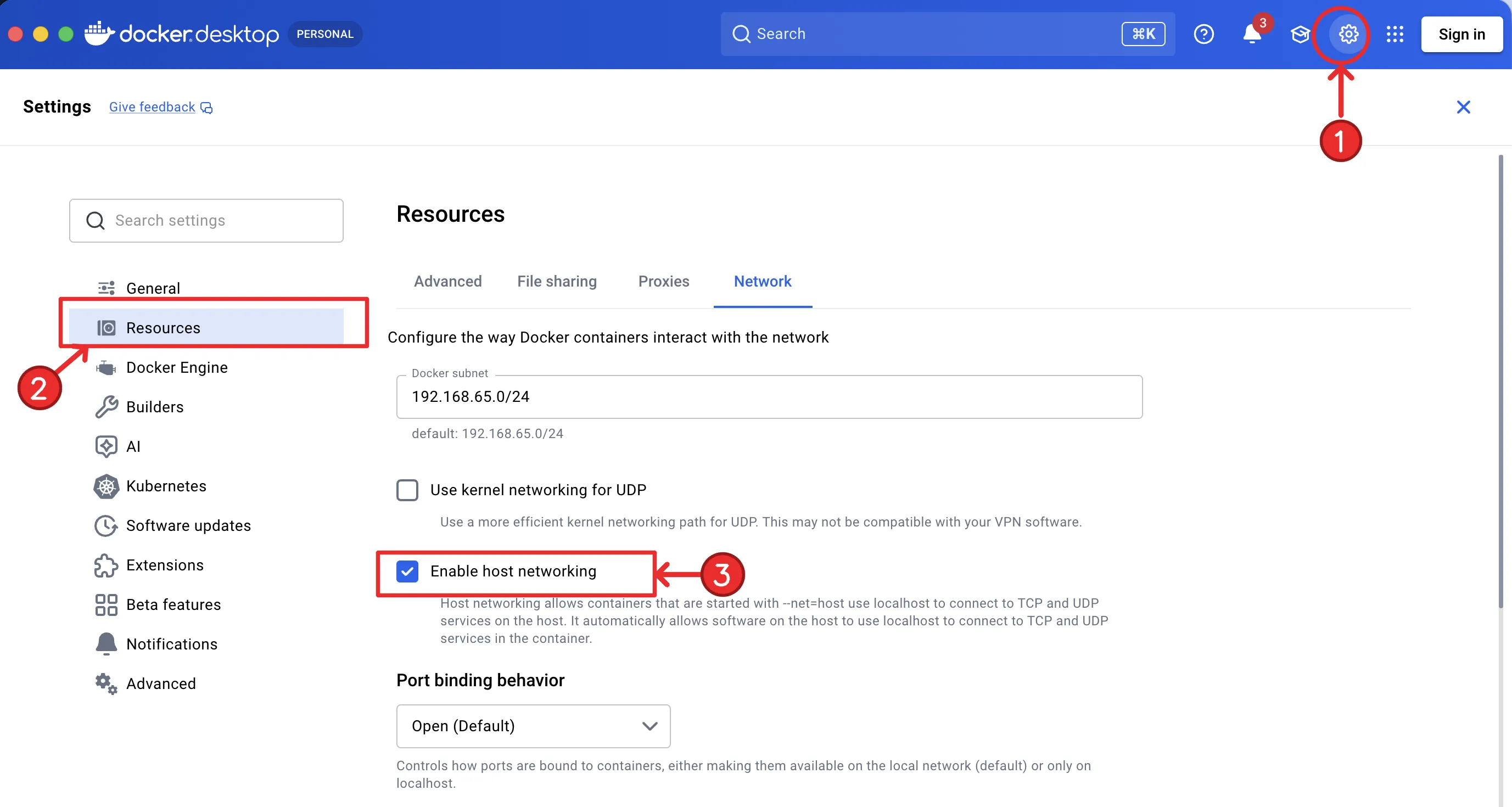
Show me where to click — Settings → Resources → Network
-
Open Settings — the ⚙️ gear icon in Docker Desktop’s top bar.
-
Go to Resources → Network.
-
Tick Enable host networking, then Apply & restart.
1. Install Docker Desktop
Section titled “1. Install Docker Desktop”Docker Desktop (it ships with Compose v2) is the only thing you install — you
don’t need adb or any Android tools on the host. The bot container brings
its own copy and connects to the emulator for you.
brew install --cask docker # Docker DesktopLaunch Docker Desktop once so the engine starts, then enable Host networking (note above).
Download Docker Desktop for Mac (pick the Apple silicon or Intel build for your Mac), install it, and enable Host networking (note above).
Verify it’s ready:
docker compose version # Compose v2.x2. Run the stack
Section titled “2. Run the stack”-
Fetch the compose file
Terminal window curl -fsSL https://batazor.github.io/autopilot-page/docker-compose.prod.yml -o docker-compose.prod.yml -
Set the emulator profile — 720 × 1280 @ 320 DPI, game language English, with Android Debug Bridge enabled in the emulator’s settings. See Emulator setup; the dashboard warns you if the resolution or DPI is off.
-
Pull and start redis + bot + api + web:
Terminal window docker compose -f docker-compose.prod.yml up -d --pull always -
Open the dashboard
Terminal window open http://127.0.0.1:3000/overview
Troubleshooting
Section titled “Troubleshooting”See Troubleshooting for the full list.